Your Social Hub for Smart Learning.
iStudyHubGo combines the engaging feel of social media with powerful learning tools—delivering courses, quizzes, resources, and community networking directly to your phone or desktop.
Fast, flexible, and fully accessible.


 Total views : 86644
How to Install iStudyHubGo on Desktop, Android, and iOS
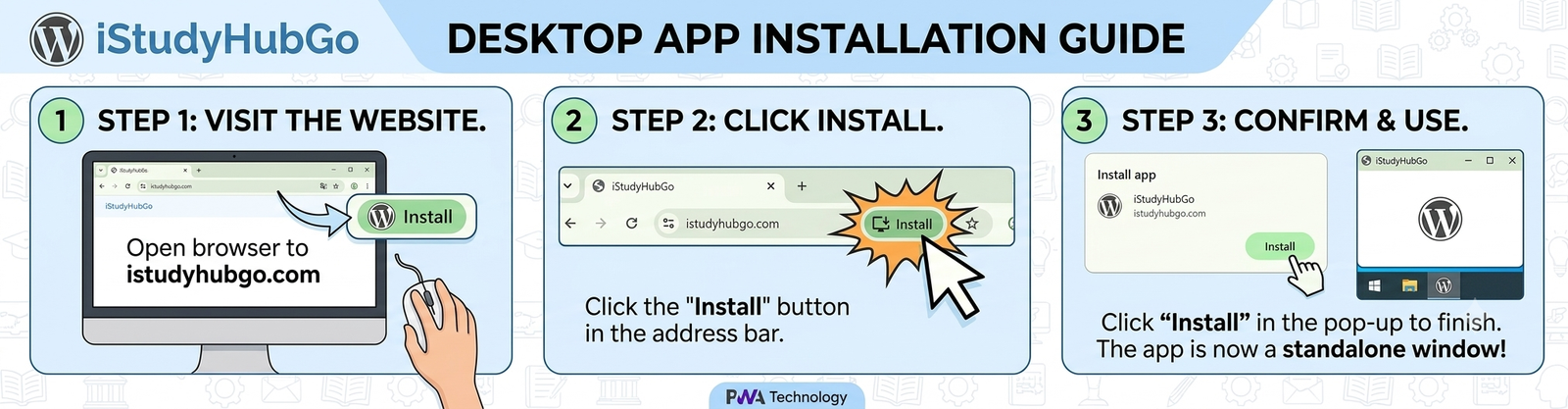
Desktop Installation Steps:
- Visit the Website: Navigate to
istudyhubgo.comin Google Chrome or Microsoft Edge. - Click Install: Observe the address bar. An “Install” icon (a browser with a down arrow, or sometimes a ‘+’ sign) will appear next to the bookmark star. In modern Chrome, this is a distinct green button, as shown in the visualization. Click it.
- Confirm: A pop-up modal will appear. Click the
Installbutton inside this window. The website is now a standalone application on your computer, accessible via your application launcher or desktop shortcut.
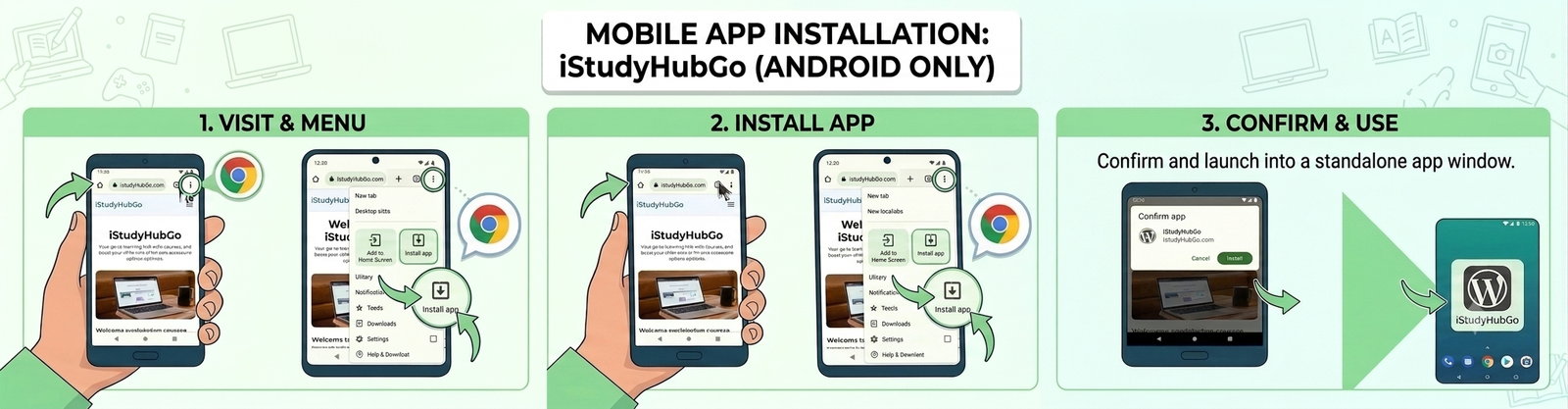
Android (Chrome)
- Visit & Menu: Open
istudyhubgo.comin Chrome. Tap the three-dot menu⋮in the upper right. - Install App: In the menu list, tap
Install app(or sometimes “Add to Home screen”). - Confirm: A final confirmation prompt will appear. Tap
Install. The app icon will now appear on your device’s home screen.
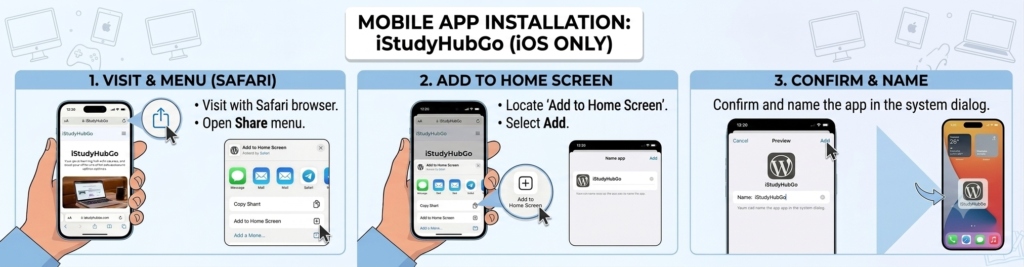
iOS (Safari)
- Visit & Share: Open
istudyhubgo.comin Safari. Tap the Share button (the square with an upward arrow) at the bottom center. - Add to Home Screen: Scroll down the share sheet and tap
Add to Home Screen. - Confirm: You can rename the icon if you wish, then tap
Addin the top right. The app icon will appear on your iOS home screen.
