Step-by-Step Guide: How to Enroll & Access Courses
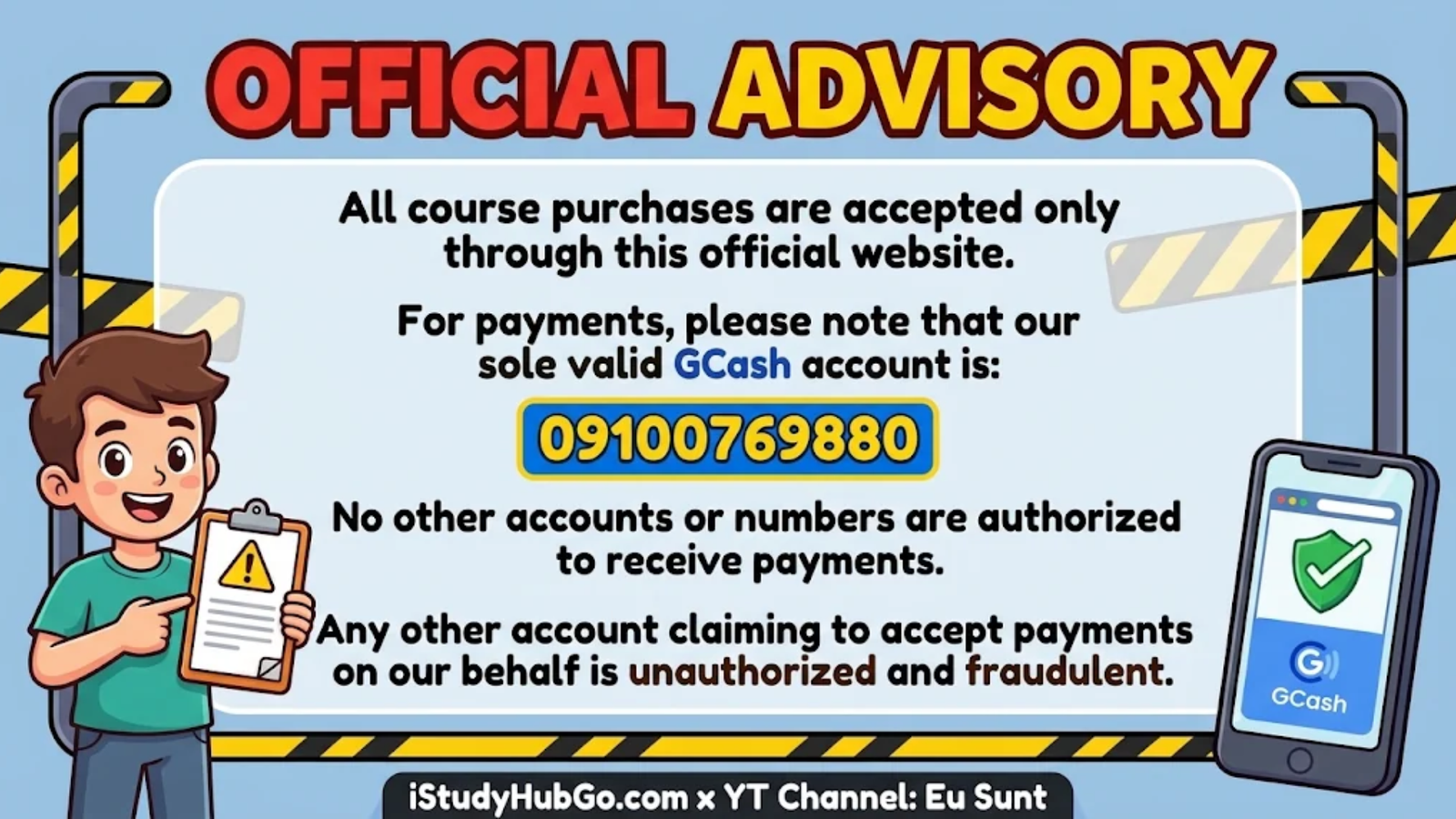
⚠️ Important Advisory: Official Payment Channel
- Official Website Only: All course purchases and enrollments are accepted exclusively through this official website.
- Authorized GCash Account: For GCash transactions, payments must strictly be sent to our sole authorized number: 09100769880
- Scam Warning: Any other account, mobile number, or third-party claiming to collect payments on behalf of iStudyHubGo is unauthorized and fraudulent.
Prohibited Usernames
To prevent user confusion, registration of the handle @istudyhubgo or any derivative implying official administrative status is prohibited. Accounts found in violation will face immediate blocking and account termination.
- Commercial Exploitation: You may not sell, monetize, or bundle these worksheets and presentation decks (PPTs) within paid educational courses or physical workbooks.
- Direct Redistribution & Re-Hosting: You may not re-upload the original digital files (such as PPTs, PDFs, or image files) to file-sharing networks, secondary websites, cloud drives, or social media groups for direct download.
- Modification & Derivative Works: You may not modify, alter, strip watermarks, remove copyright notices, or claim authorial ownership over our downloadable assets.
Phase 1: Enrollment & Payment
-
Log In / Register
- Go to Account in the upper-right corner and select Login / Register.
- Sign in to your account, or register using your active email address.
-
Select Your Course
- Head over to Explore Courses in the navigation bar.
- Choose the course or learning package you need.
-
Add to Cart & Checkout
- Review the course inclusions and pricing details.
- Click Add to Cart (or Enroll Now) and head to your cart to proceed to Checkout.
-
Settle Payment & Verification
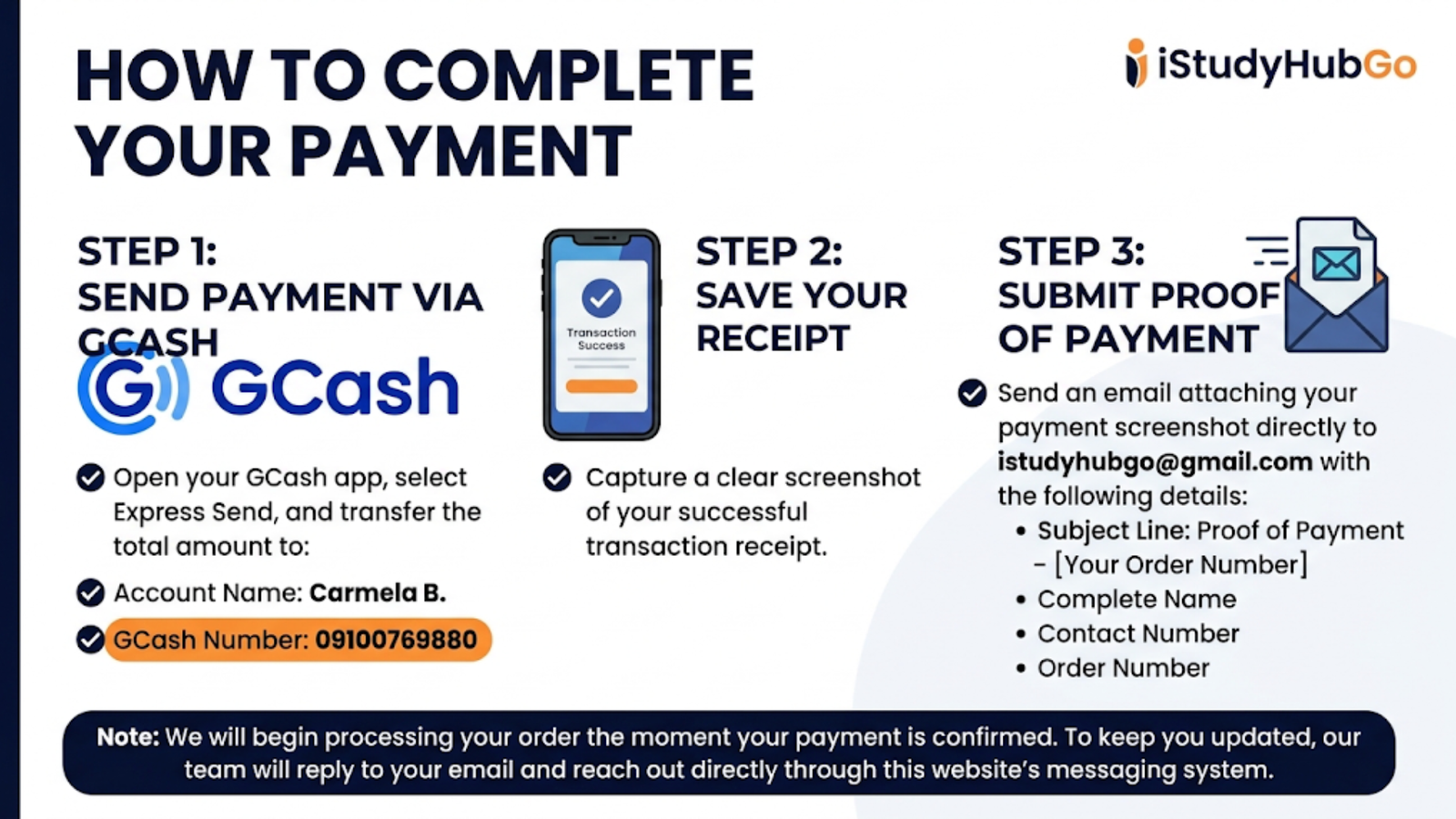
Fill out the billing information and follow the exact 3-step payment & submission process below:
How to Complete Your Payment
iStudyHubGoStep 1Send Payment Via GCashOpen your GCash app, select Express Send, and transfer the total amount to:
Account Name: Ca***a B.
GCash: 09100769880Step 2Save Your ReceiptCapture a clear screenshot of your successful transaction receipt.
Step 3Submit Proof of PaymentSend an email attaching your payment screenshot directly to istudyhubgo@gmail.com with:
- Subject: Proof of Payment – [Order #]
- Complete Name
- Contact Number
- Order Number
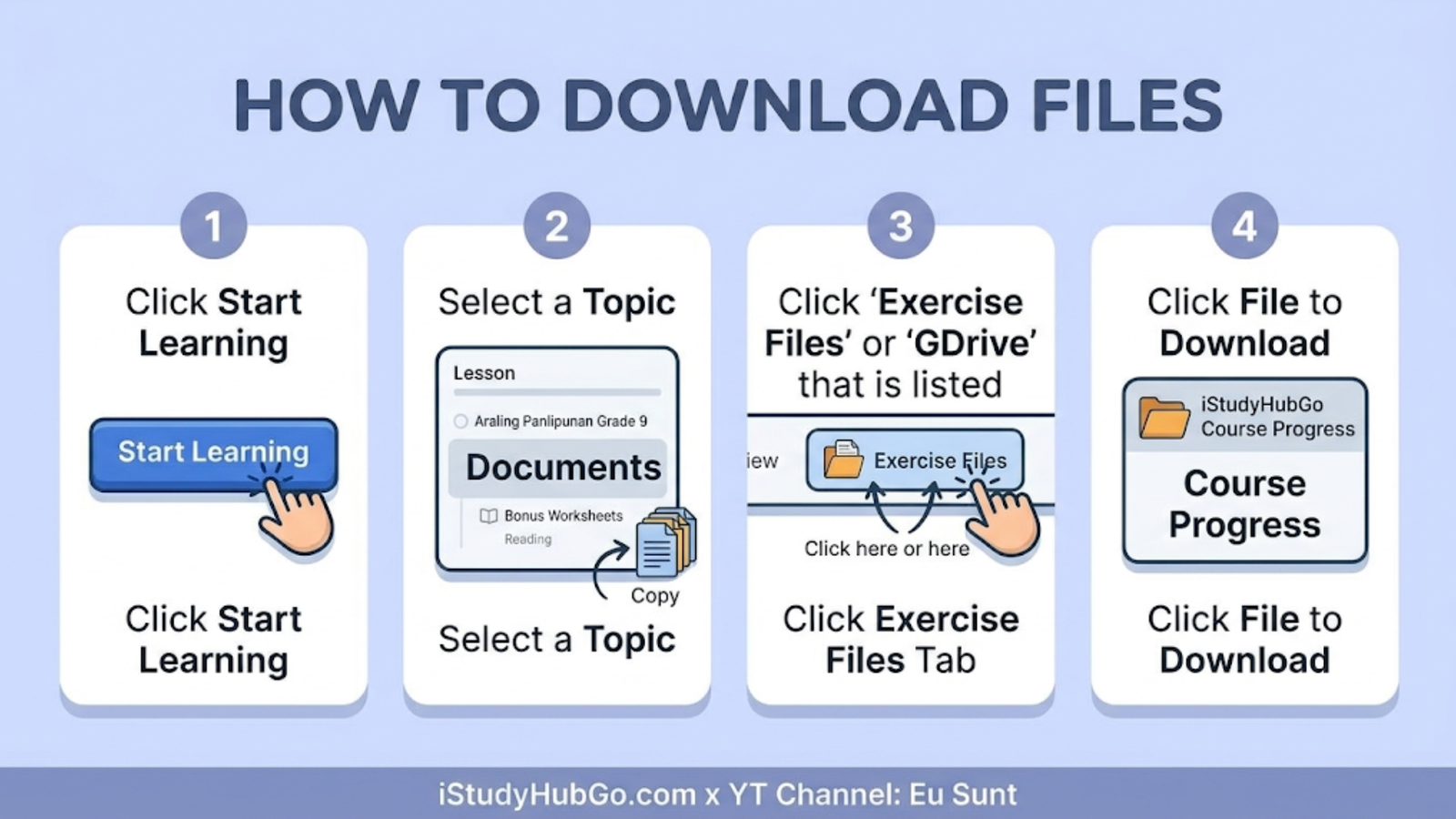
Phase 2: How to Download Course Files
Once your enrollment is confirmed, follow these steps to access and download your learning materials:
- Click “Start Learning” inside your enrolled course page.
- Select a Topic from the lesson sidebar (e.g., specific grade levels or learning modules).
- Click the “Exercise Files” or “GDrive” tab displayed under the lesson viewer.
- Click the File to Download to save the presentation decks and worksheets to your computer.
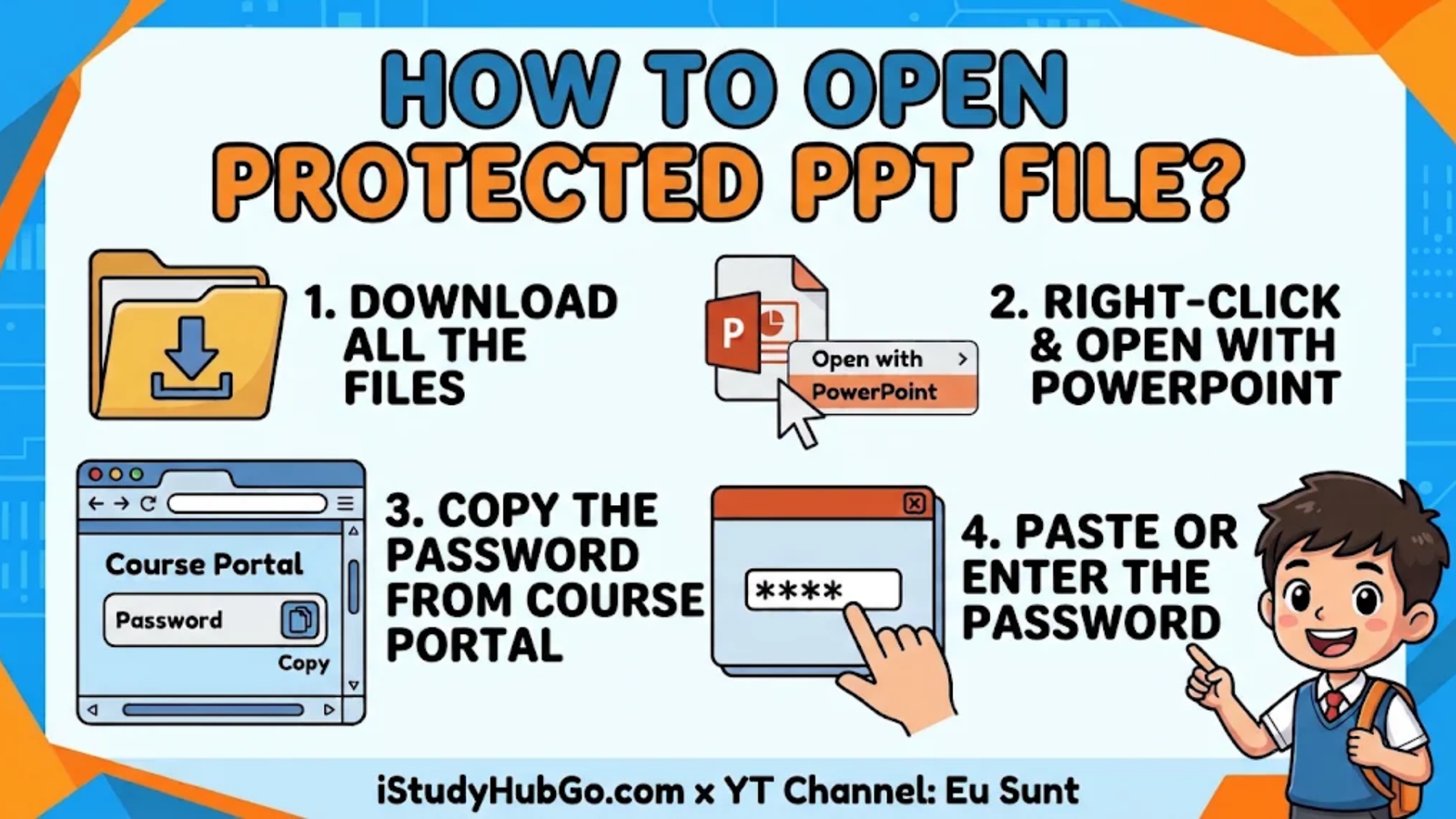
Phase 3: How to Open Password-Protected PPT Files
Presentation decks and premium materials are password-protected. Follow this process to unlock them:
- Download all the files completely to your local storage.
- Locate the file, right-click it, and select Open with PowerPoint.
- Copy the password provided directly inside your Course Portal under the lesson module.
- Paste or enter the password when prompted by PowerPoint to view and use the deck.
Support Desk
For payment confirmation queries or access assistance, reach out directly to istudyhubgo@gmail.com.